


vSphere Replication

Updated: Feb 28
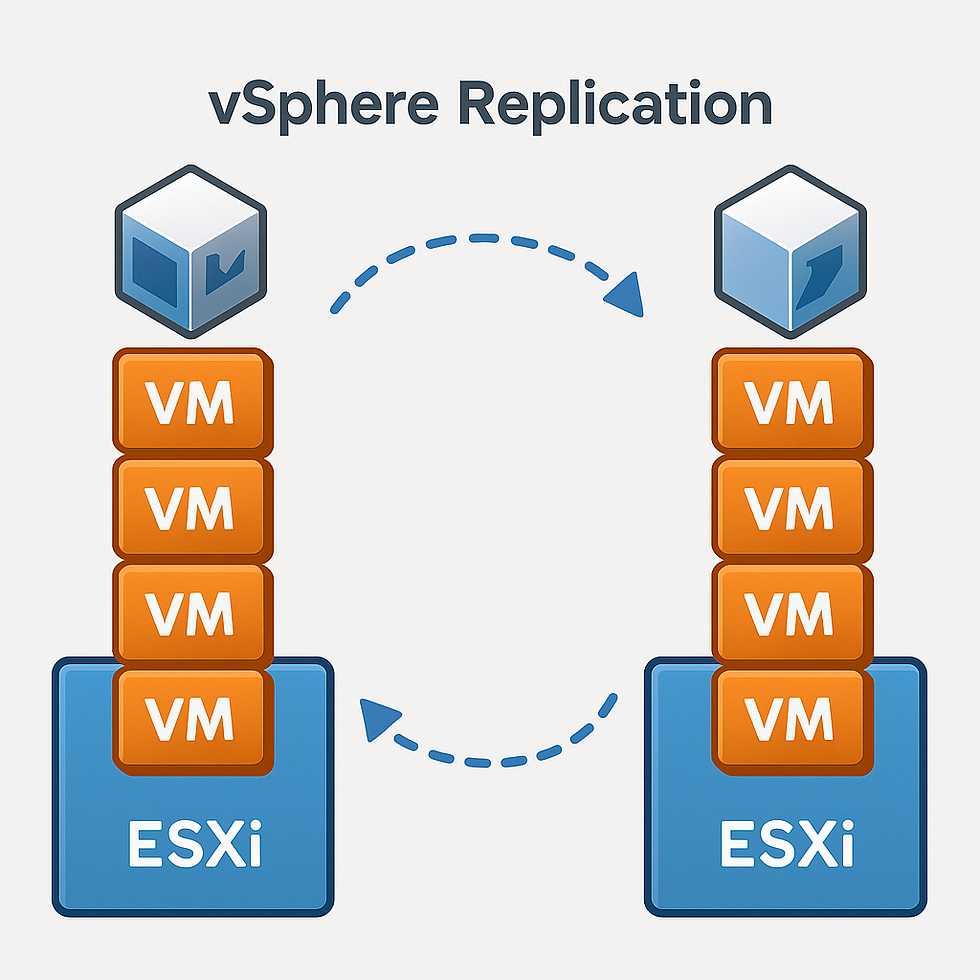
What Is vSphere Replication?
vSphere Replication (VR) is a host‑based, asynchronous replication engine integrated into vCenter Server, allowing you to replicate VMs across different datastores—whether on the same site or across remote sites. It works independently of underlying storage type, supporting vSAN, SAN, NAS, or DAS
Key benefits:
● Efficient, change‑block tracking with configurable RPO (Recovery Point Objective) from 5 minutes to 24 hours
🏗️ Architecture & Deployment
● Deploy one vSphere Replication appliance per source/target vCenter Server using OVF; maximum of 10 appliances per vCenter (1 management and up to 9 additional servers) Appliances operate over TCP port 31031, and replication traffic can be compressed or encrypted per VM
● At least one VM appliance must run on each site (source and target) to manage configurations and data replication jobs
Vsphere Replication Diagram

The diagram captures the three primary replication topologies supported by vSphere Replication:
Between Two Sites
Within a Single vCenter
Replication to a Shared Target Site
In each scenario, ESXi hosts at the source site use a vSphere Replication agent to capture block changes. These changes are sent via VMkernel (NFC) to the vSphere Replication Server(s), which apply them on the target hosts to the replica datastore. All orchestration and configuration is handled by the vSphere Replication Appliance (VRA) registered with vCenter
🔍 Architecture Components
1. vSphere Replication Appliance (VRA)
● Deployed as a virtual appliance through OVF and registered with vCenter.
● Embeds the management server (VRMS), internal replication server (VRS), and an embedded vPostgreSQL database
2. vSphere Replication Server(s) (VRS)
● Handle actual data paths: collecting the changed blocks and transmitting them to target hosts using VMkernel/NFC.
● In larger environments, VRS can be scaled out (up to 10 appliances per vCenter) to distribute replication load and handle up to ~200 replications per server
3. vSphere Replication Agent
● Embedded into ESXi hosts takes care of identifying changed blocks.
● Sends deltas to the VRS; this engine works independently of the underlying storage layer (storage-agnostic)
🔁 Topology Scenarios
Topology | Appliances Required | Data Flow |
Between Two Sites | 1 VRA per vCenter at both source and target | Source VM ➜ Source host ➜ VRS ➜ Target host ➜ Target datastore |
Single vCenter, Dual Datastores | 1 VRA within the same vCenter, plus optional VRS scale-out | Source host ➜ VRS ➜ Target datastore (same vCenter) |
Shared Target Site | 1 VRA per source vCenter; target can host multiple | Multiple vCenter sources ➜ shared target site VRS ➜ replica |
🗺️ Data Flow Summary
Agent on Source ESXi Host tracks changed VMDK blocks.
Data is passed to Source VRS via VMkernel/NFC network.
VRS encrypts/compresses (configured per VM), then transmits deltas.
Target VRS or Replication Server receives data and writes to target ESXi host datastore.
Snapshots (MPIT) are managed at target side for point-in-time recovery options
🧩 Key Architectural Highlights
● Storage-agnostic: Supports any datastore type, including vSAN, SAN, NAS, or DAS—even between heterogeneous storage types
● Scalable replication: Supports up to ~2000 VM replications per appliance, scalable with additional VRS nodes
● Recovery capabilities: Manual or test recovery actions through vCenter; retained instances available as point-in-time snapshots for rollbacks.
🧠 Additional Notes
How Data flows in Vsphere replication
Source VM ESXi Host → destination site replication server → destination host → destination storage.”
Reflects newer versions eliminating unnecessary I/O hairpins through VRS appliances for improved performance
🔁 How Replication Works
Initial Sync
○ When configuring a VM for replication, VR performs a full initial synchronization based on data size and available bandwidth.
○ Optionally, you can use a seed copy shipped offline to reduce network load—VR verifies UUIDs match between source and seed.
Ongoing Sync (Delta Syncs)
○ VR monitors changed blocks and transmits them on schedule based on the configured RPO; these are called lightweight delta syncs.
Snapshots & Quiescing
○ Snapshots are not created unless VSS (Windows) or Linux file system quiescing is enabled for application-consistent recovery points.
Recovery Process
○ Recovery creates a VM at the target site using the replica disk; network interfaces are not connected automatically—you must manually attach the guest to proper networks
○ VR supports point-in-time recovery and exposes retained instances as snapshots after recovery.
📜 Licensing & Compatibility
● vSphere Replication is included in vSphere Essentials Plus and all higher tiers (Standard and above)
● Compatible versions: VR appliances on one site can be up to one version behind the remote site (e.g., vSphere Replication 8.5 works with VR 8.4+)
📊 Use Cases & Limitations
Use Case | vSphere Replication Capability |
Local DR within same vCenter | Replicate across clusters/datastores in same vCenter |
Remote site replication | VM replication to different vCenter over WAN/LAN |
Shared target site | Multiple sources replicating to same target site |
Independent of storage vendor/type | Support for SAN ⇄ NAS ⇄ vSAN ⇄ DAS |
Limitations & considerations:
● VR does not perform networking reconfiguration (IP, hostname); you must handle this or use SRM combined with VR for automated DR plans.
● Replication of encrypted VMs is currently limited or unsupported on some vSphere/VR versions (e.g., vSphere 7.0 U2 + VR 8.5) unless using patched versions or newer VR releases
● High-change workloads (e.g., heavy DB writes) can cause RPO violations; this is not a VM crash issue, but VR may lag behind if data change rate exceeds network capacity.
🛠️ Monitoring & Alerts
● VR integrates with vCenter alerts—you can configure email alerts for conditions like RPO violation or sync failure
● For larger environments, you can use vRealize Log Insight or Aria Operations to collect and alert on VR events and metrics
✅ Setup & Configuration Summary
A. Install VR Appliances
Deploy OVF on each vCenter (source & target).
Configure via VAMI: register with vCenter and secure SSL.
B. Configure Replicas
In vSphere Client → Site Recovery plugin → configure New Replication.
Select VM(s), target site and datastore, RPO, optional compression/encryption, and retention policy.
C. Initial Sync & Management
● Initial full synchronization kicks off; optional use of seed.
● Monitor sync progress and status via vSphere Client UI.
D. Recovery Testing or Cutover
● Perform Test Recovery (bubble mode) or Planned Recovery/Cutover manually.
● Manually attach network interfaces and configure IP/network settings.
E. Operate & Monitor
● Check RPO and sync health regularly.
● Set alerts for violations, failures.
● Optionally integrate with SRM for orchestration.
💡 Best Practices
● Use quiescing for app consistency (database workloads).
● Use seeds for large VMs or low bandwidth links to speed up initial sync.
● Monitor RPO status and tune network bandwidth or schedule accordingly.
● Keep replication appliances and vCenter up-to-date and avoid mismatched versions.
● Maintain offsite backups in addition to replication—VR is DR, not a backup solution


Comments